How I Accidentally Fell in Love with My Kid’s Chromebook
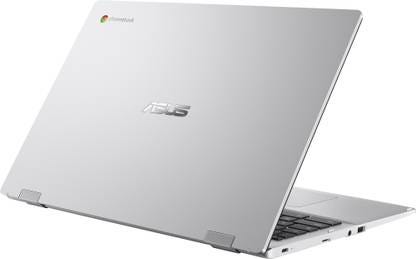
Source: ASUS
A parent’s unexpected journey from skeptical buyer to devoted convert
I bought my 5-year-old an ASUS Chromebook with the best of intentions. It was supposed to be his first real computer — something simple, safe, and educational. What I didn’t expect was to find myself quietly coveting it every time he wasn’t using it.
The decision wasn’t made lightly. In today’s world, basic computer literacy isn’t optional, and starting early with proper typing skills and digital responsibility seemed more valuable than delaying the inevitable. Rather than another passive screen for entertainment, this would be a tool for creation, learning, and building foundational tech skills he’d need throughout his education.
It started innocently enough. I needed to help him set up his profile, so I spent some time getting familiar with the interface. That’s when I noticed something remarkable: this wasn’t the stripped-down, browser-only experience I remembered from early Chrome OS devices. This was something entirely different.
The Interface That Just Makes Sense
The first thing that struck me was the interface design. It’s clean without being sterile, intuitive without talking down to you. The keyboard layout immediately felt right — gone are the mysterious function keys replaced by actual icons that make sense. Brightness controls look like brightness controls. Volume buttons look like volume buttons. Revolutionary? Maybe not. Refreshing after years of hunting for Fn+F7 combinations? Absolutely.
The trackpad gestures flow naturally, and when you switch to touch, it doesn’t feel like you’re switching modes or fighting the system. Everything just works the way you’d expect it to.
Profiles Done Right
Setting up separate profiles turned out to be a revelation. Within minutes, I had created a kid-safe environment for my son — complete with time limits, app restrictions, and content filtering — while maintaining my own unrestricted profile. Switching between them takes two clicks, and each feels like a completely different computer.
This isn’t just parental controls bolted onto an adult system. It’s a genuinely family-friendly design that gives everyone what they need without compromise. My son gets his educational games and YouTube Kids, I get my full productivity suite, and neither of us accidentally messes with the other’s stuff.
The AI Integration That Actually Works
Perhaps most surprising was the seamless AI integration. I’m used to AI features feeling like afterthoughts or requiring complex setup. Here, everything from smart compose in Gmail to real-time transcription just works out of the box. The system anticipates what you need without being intrusive about it.
But the real magic happens with the native AI apps. Having Gemini integrated directly into the system means you can access Google’s AI assistant without opening a browser or dealing with separate logins. It’s just there, ready to help with everything from answering questions to brainstorming ideas.
NotebookLM is particularly impressive when it runs natively. Instead of being a web app that feels clunky, it operates like a proper desktop application. You can upload documents, generate summaries, and create study guides with the kind of smooth performance you’d expect from local software, but with the power of cloud-based AI processing.
The difference between using these AI tools as web apps versus having them integrated natively is remarkable. Response times are faster, the interfaces feel more responsive, and switching between AI assistance and your regular work happens seamlessly. It’s AI that enhances your workflow rather than interrupting it.
The Perks That Keep on Giving
What truly seals the deal is the Google Chromebook perks bundle — a collection of premium services and benefits that significantly amplifies the value proposition. We’re talking about Google One storage upgrades, YouTube Premium trials, Google Play Credits, and access to premium versions of various Google services.
But the real showstopper is the AI premium plan inclusion: 3 months of Gemini Advanced for regular Chromebooks, and an incredible 12 months for Chromebook Plus models. That’s $240 worth of premium AI service included with a Chromebook Plus — often more than the cost of the device itself!
In India, where I purchased this ASUS Chromebook for ₹17,000, the value proposition becomes even more extraordinary. The included AI premium service alone would cost ₹1,600+ per month, meaning you’re getting AI capabilities worth more than the entire laptop cost. In a price-sensitive market like India, this isn’t just good value — it’s revolutionary.
As someone who was already a heavy user of Google One storage solutions and Gemini AI integrations, this deal hit differently. Instead of discovering new services, I was getting premium upgrades to tools I already relied on daily. Those 3 months of free Google One felt like getting a rebate on my existing subscription, while the Gemini Advanced access supercharged workflows I was already using.
It’s the difference between a good deal and a perfect deal — when the value proposition aligns exactly with your existing needs and usage patterns.
When you calculate the annual cost of these services separately, you’re looking at hundreds of dollars in additional value. It’s like buying a laptop and getting a premium software suite thrown in for free. The hardware price suddenly feels like just the entry fee to a much larger ecosystem of benefits.
These aren’t throwaway trial offers either. The storage upgrades genuinely solve the “where do I keep all my files” problem, the YouTube Premium access transforms how you consume content, and that year of premium AI capabilities puts cutting-edge technology at your fingertips without the monthly subscription anxiety.
The Microsoft Office Surprise
One concern I had as a heavy Microsoft 365 user was whether I’d be locked out of my familiar productivity tools. This turned out to be another pleasant surprise. Modern Chrome OS handles Microsoft Office integration remarkably well through Progressive Web Apps (PWAs).
Setting up Office was seamless — opening any Office file triggered a one-time setup that installed the Microsoft 365 PWA suite and integrated OneDrive directly into the ChromeOS Files app. Now I can access Word, Excel, PowerPoint, Teams, OneNote, and Outlook just like native applications, complete with offline functionality, push notifications, and taskbar pinning.
For Windows users considering a Chromebook for their kids (or themselves), this integration means you won’t be abandoning your Microsoft workflow. Your OneDrive files appear right in the native file manager alongside Google Drive, and the Office web apps provide nearly all the functionality most users need for daily productivity tasks.
It’s this kind of cross-platform compatibility that makes Chrome OS feel less like a Google-only ecosystem and more like a truly flexible computing platform.
Beyond the Browser Myth
The biggest misconception I had was that Chrome OS was still just “a browser pretending to be an operating system.” What I found instead was a mature desktop environment with proper file management, native apps, and multitasking capabilities that rival traditional operating systems.
The Google Play Store integration means you have access to thousands of Android apps that run natively alongside web applications. The file manager handles local storage, external drives, and cloud storage with equal ease. This isn’t a limited system anymore — it’s a different approach to computing that happens to excel at web integration.
The Explore App That Doesn’t Bore
Most onboarding experiences feel like homework. Chrome OS’s Explore app feels like having a knowledgeable friend show you around. Instead of overwhelming you with every feature at once, it offers contextual, bite-sized tips that you can immediately apply.
It’s the rare tutorial system that actually makes you more productive rather than just more informed. I found myself looking forward to discovering new shortcuts and features, rather than dreading another dry walkthrough.
What started as a practical purchase for my child has become something I genuinely look forward to using. The 8-second boot time, the battery life that lasts all day, the automatic updates that happen invisibly in the background — these aren’t flashy features, but they’re the kind of reliability that makes technology feel like a tool rather than a burden.
The ASUS Chromebook has taught me something important: sometimes the best technology is the kind that gets out of your way. It doesn’t try to impress you with complexity or overwhelm you with options. It simply does what you need it to do, efficiently and elegantly.
The Unexpected Conclusion
I bought this Chromebook thinking it would be a stepping stone — a simple first computer before upgrading to something “more serious.” Instead, I’ve discovered that simple doesn’t mean limited, and that sometimes the most sophisticated approach is the one that feels effortless.
Now I just need to negotiate some shared custody time with my 5-year-old.